Project Estimate updates feature in Project Operations parameters

If you’ve worked on Project Operations for a while and are used to managing a Project and adding Expense and Material Estimates to a Project, you might have gotten used to putting things into the Materials and Expense Estimates tab – but this is now further simplified using Project estimate updates feature.

Let’s look at how this works!

Default Layout of Estimates on a Project

Let’s see below how the default Estimates appear on a project before the feature is enabled –

  1. If you open a Project, you’ll find your Estimates tab here. It shows the distribution of time-phased estimates and this is non-editable

  2. And the Material Estimates and Expense Estimates are their own separate tabs.

    Expense Estimates


    Material Estimates

  3. Now, let’s go ahead and enable the Project estimate updates feature and look at the changes thereon.


    You’ll be asked for confirmation before proceeding as this feature cannot be turned off.

Project estimate updates

Now, let’s look at how the Project estimate updates will appear –

  1. The original Estimates tab which was static is now renamed as Time phased estimates

  2. And the Material Estimates and Expense Estimates are consolidated under the Estimates tab.
    Expense Estimates are seen as below


    And there’s a way to switch between Expenses and Materials


    And the Material Estimates are as below –

Hope this was useful!

Thank you!

Project Contract Price List Defaulting Behavior in Project Operations

In Project Operations, if you are creating Project Contracts, you must be adding them explicitly to the created Project Contract. Also, the ways to create a Project Contract might be different in your case.

Let’s review some options on how you can configure Project Operations to create attach a Project Price List to a Project Contract in Project Operations –

Project Parameters for Price Lists Defaults

Here are some options on how you can set preferences for Project Price List Contract creation in Project Operations –

  1. If you navigate to Project Parameters in Project Operations, you’ll see the below section where you can set Defaults for setting Price Lists on the Project Contract.


  2. If you notice, the Price List Defaulting behavior applies to when the Project Contract is created as Project Contract controls the Pricing in project operations.

    Below are the two scenarios in which Project Contract can be created –
    1. Direct Project Contract Creation
    2. Project Contract Creation from Quote.

    And option on how Custom Pricing should apply is provided.

Default Behavior

Let’s look at the scenario of what happens when you create a Project Contract directly or through a Quote or without a Quote and create it directly –

  1. The Project Contract will be created without associating a Project Price List and you’ll see this notification on the Project Contract asking you to associate a Project Contract Price List to the Contract for Pricing to be calculated –

For Direct Project Contract Creation

Let’s see what options we have for direct Contract creation and implications of each –

  1. Below are the 2 options available when creating Project Contracts directly i.e. not going from a Quote being marked as Won.


  2. And if we select the first option i.e. to Associate existing applicable standard price lists to project contracts, we have to also set a Price List in the Project Parameter itself to be defaulted.


  3. You’ll see a Pricelist tab on the project parameter record itself and you can add a Price List which you want to be considered as default.

  4. Now, when you create a Project Contract, the same Price List will be defaulted to the Project Price List tab and you won’t see the notification.


  5. And when you choose to associate a “copy” of the Default Price List set in the Project Parameter.

  6. And when you now create a Project Contract directly, you’ll rather see a new Project Price List created by copying the one defaulted.

For Project Contract Created from Quote

Let’s see what options we have for Contract creation from Quote and implications of each option available –

  1. This is the parameter to configure for Project Contracts created from Quote.


  2. And below are the options available when creating Project Contracts from Quotes on what types of Price Lists should be associated/created for Contracts.


  3. When we choose the first option to associate the Quote Price List to Project Contract, as below –


    we’ll see in second screenshot how the Price List is associated to the created Contract.
    I have the below Quote Price List associated with the Quote


    Now when I mark the Quote as Won, this Price List will be associated with the created Contract, this Price List is associated with the Contract itself without creating a new copy of any other Price List.

  4. When I select the second option to associate quote price list to project contract with contract-specific price overrides for components estimated on the Quote.


  5. So what this does is, for example, I’ve quoted some hours for Supervisor on the Quote and overridden the Price of one of the Quote Line Details


    And when I create a Project Contract out of this Quote,

  6. For the next option, as it states, you can simply create a Copy of the Prict List associated on the Quote Price List to the Contract Price list so that the reference can be of the Quote’s Price List but the Contract will have it’s own copy and not reference the one on the Quote already.


    Now, let’s say I have this Price List on the Quote

Custom Pricing Options

Let’s look at some Custom Pricing Options –

  1. We have the below 2 options for how Custom Pricing should be calculated. If none is selected, the Custom Pricing button on the Quote Lines and Contract Lines won’t function.


  2. Now, when the Option 1 is selected i.e. Create full copy of the standard price lists – this will work how it used to in PSA. It’ll create a timestamped copy of the Project Price List which is already associated with the Contract.


    See below –
    It’ll create a new Price List and will retain all the Price List items which were part of the original Price List.


    And this is the timestamped copy of the Price List which includes full Price List Items included.


    And the items are included as well –


  3. Now, when you select the second option i.e. Create protected price overrides for price list components used on the quote or contract.


  4. It’ll create a copy but with only the items referenced in the Contract Line / Quote Line.


    It’ll create a Price Override record in the referenced Price List itself. So, if you open the Price List, you’ll find the Override as below –


Hope this was useful!

Thank you!

Plugins Development in Dynamics 365 CRM | Part 1 – Setting up Visual Studio Project

If you are a newbie to Dynamics 365 CRM and need to connect dots in getting your first plugin up and running, this post is for you! I’ve tried to summarized this in the shortest possible way. 😊 Hope this gets you going quickly!

Since you’re here, it’s presumed that you are told to learn or implement a Dynamics 365 CRM plugin with some business logic in mind based on the requirements. So, here’s how you get started in your learning journey!

Pre-Requisites

Here’s what you need to be have installed in order to proceed to writing a plugin –

  1. Plugin Registration Tool – Required for your to connect to the Dynamics 365 environment and deploy your plugin on.
    How to get Plugin Registration Tool: Download Plugin Registration Tool for Dynamics 365 CRM using PowerShell
  2. Microsoft Visual Studio – You’ll need to write your plugin in a Visual Studio IDE as it’s the preferred way to code your plugin and also to Version Control / Source Control.

Scenario

Now, before you decide why you have to write a plugin, it is presumed that you have some high-level understanding as to why you are writing this plugin.

To keep it short, here are some points –

  1. Understand Plugin Execution Pipeline (Basically, it means when is the plugin supposed to run when you perform a certain operation) – https://carldesouza.com/dynamics-365-plugin-execution-pipeline/

Example Business Scenario

Here’s a quick example we’ll consider which we will implement using a plugin –

  1. An account has a custom field called as Group Code.

  2. So whatever is updated in this field should be updated on all the Child Contact records under the Account.


    Now, let’s write a quick plugin to implement this.

Writing a Plugin – Visual Studio

Given that you want to start writing a plugin, you must also have understood some concepts –

  1. You’ll need to create a new .NET Framework Project in order to get started. I use Visual Studio 2022 (This was newly released at the time of writing this post)
    So the type of Project required is a Class Library of .NET Framework

  2. Once you click Next, provide a relevant name to the Project. As a D365 Consultant working on multiple projects, you should be able to identify the library/assembly by the name as to which Org and what Module it belongs to.
    In my case, I’m calling it CFT158SalesPlugins which is sufficient to give an idea of what org and what module this assembly is for.

  3. Once I click on Create, an Empty Project with the standard Class1 will be created which will be ready for you to start writing.

  4. Next, since Dynamics 365 CRM plugins extend IPlugin interface provided by Microsoft Dynamics, you’ll need to fetch references for the same.


    Now, right-click on the Project itself and click on Manage NuGet Packages…

  5. Then, go to Browse and then search for Dataverse…

  6. You’ll find Microsoft.CrmSdk.CoreAssemblies which you can download. I usually choose a little older version than the current one.

  7. Make sure you have selected the correct one. Then, click OK.


    Next, you get a chance to also look at the licensing terms before you Accept. Once you are OK, you can click on I Accept.

  8. If you have the Output window open in your Visual Studio, you’ll be able to see the progress. It only takes a few seconds for the references to be imported.

  9. Once done, you can see that the references required have now been added to the project.

  10. I’ll rename my Class1.cs to something that gives an idea of what the Plugin would do.
    So, for example, I’m setting it to AccountUpdate.
    Detailed post on Renaming or Deleting a Plugin in Dynamics 365 CRM
    Now, that my class is renamed, I’ll also add the references to the Class File so that I can use the IPlugin interface. In most common Plugin scenarios, you’ll need Microsoft.Xrm.Sdk amongst other references too.
    My personal practice is to include as shown below –


Setting Initial Methods

Now, let’s set a template of which we can start to code the plugin. Before we do that, some common Methods need to be added first.

  1. I’ll now extend the IPlugin interface to the class.

  2. As you choose the IPlugin, in Visual Studio, you’ll be prompted for some actions which will auto-complete the interface process. Look for the icon on the left hand side and expand the menu to find Implement Interface


    Once done, the Execute method will be populated as below. Execute method is the first method from where the plugin execution starts.
    Also, make sure the class is public so that we can register is successfully in the Plugin Registration Tool.

  3. Now, below are some helper methods which are required for the plugin to be registered on the environment.
    You can copy from here:

    context = (IPluginExecutionContext)serviceProvider.GetService(typeof(IPluginExecutionContext));
    service = ((IOrganizationServiceFactory)serviceProvider.GetService(typeof(IOrganizationServiceFactory))).CreateOrganizationService(context.UserId);
    trace = (ITracingService)serviceProvider.GetService(typeof(ITracingService));


  4. In order to understand what these methods are, you can simply hover over these and read the definition. If you don’t understand these right away, it’s not a problem. But, it’s recommended that you thoroughly understand the purpose behind each of these.

  5. Then, this should be the first method to call in order to establish connection with the Dynamics 365 CRM organization you are hosting this plugin on.

  6. Next, you’ll need to Sign the Assembly before it could be registered on the environment using Plugin Registration Tool.
    Right-click on the Project and then choose Properties.

  7. Once in Properties, look for the Signing section on the left-hand side on the menu.
    Notice that the Sign the assembly is not yet enabled.

  8. Once you tick it, it’ll expose the area below and you’ll be able to create a new strong key name file.

  9. When I click on new, I created a strong name key file –
    Note: I’ve not password protected the Strong Name Key I’m creating but it’s up to you to maintain it if needed.

  10. Once I click OK, the .snk file will appear here.

  11. Finally, build the Project at this stage and we’ll move towards Registering this Plugin.

    Now, at this point, we have established the code which is ready to be hosted on the Dynamics 365 CRM organization itself. Post this point, you’ll now code the logic which is supposed to be done by the plugin.

But first, let’s move to part 2 where you’ll first host this assembly in the Dynamics 365 CRM environment!

Registering Plugin in Dynamics 365 CRM environment

Here’s the Part 2 of the Blog: https://d365demystified.com/2021/12/31/plugins-development-in-dynamics-365-crm-part-2-registering-your-plugin/

Hope this was helpful! Here are some more Dynamics 365 posts which you might be interested in –

  1. Dynamics 365 Storage Utilization | Dataverse Storage | Power Platform Admin Center
  2. Use Hierarchy in Roll Up Fields in Dynamics 365 CRM
  3. Filter records in a View owned by a Team you are a member of | Dynamics 365 CRM
  4. Get GUID of the current View in Dynamics 365 CRM JS from ribbon button | Ribbon Workbench
  5. Dynamics 365 App For Outlook missing on SiteMap in CRM? Use shortcut link [Quick Tip]
  6. Import lookup referencing records together in Dynamics 365 CRM | [Linking related entity data during Excel Import]
  7. Mailbox Alerts Hide/Show behavior in Dynamics 365 CRM
  8. Excel Importing Notes (Annotation) entity in Dynamics 365 CRM
  9. Enable/Disable the need to Approve Email for Mailboxes in Dynamics 365 CRM CE
  10. Call Azure Function from Dynamics 365 CRM using Webhooks
  11. Show Ribbon button only on record selection in Dynamics CRM
  12. Accessing multiple occurrences of a field in Business Process Flow using JS in D365 CRM

Thank you!!

Toggle Auto Save for Dynamics 365 CRM environment | Power Platform Admin Center

There have been many changes over the years to the Features / Behaviors which previously used to sit in System Settings in classic Dynamics CRM. Now, that things have moved to the Power Platform Admin Center, here’s how you can change the Auto Save On / Off

Power Platform Admin Center

Let’s see how you can change the Auto Save feature for each Dynamics 365 instance

  1. Go to https://admin.powerplatform.microsoft.com/, in Environments, select the Environment whose Auto Save you want to change – click on Settings.

  2. Expand the Product tab and go to Behavior.

  3. In Behavior settings, you’ll see Auto save which could be On or Off based on the current setting which you can toggle.


  4. Finally, once you change simply click on Save and the bottom right corner which must’ve been highlighted to Save if you changed a Setting.


  5. And that’s it, the records won’t be saved until you deliberately Save upon updating data in the same.

Hope this helps!

Here are some more Dynamics 365 / Power Apps Admin Center posts you might want to check –

  1. Admin Center URLs under M365 – Power Platform, Teams, SharePoint, Power BI
  2. Turn Teams On / Off at Org Level, provisioning users | M365 Admin Center Tip
  3. Convert environments between Production and Sandbox | Power Platform Admin Center [Quick Tip]
  4. Create new Sandbox and copy Production over to it in PowerPlatform Admin Center
  5. New ‘Capacity’ analytics on PowerPlatform Admin Center
  6. Create new CDS Environment and Database quickly from PowerApps Admin Center

Thank you!

Duration field in Dynamics 365 converts Hours value to Days in Dynamics 365 | [Flow Workaround to convert in Hours and Mins]

This must be one of the most common scenarios Dynamics 365 Users must’ve come across. The Whole Number’s Duration field shows Duration in Days once it crosses 24 hours, it shows the Duration in Days. Like below –

And once you leave the control, it’ll be converted to it’s equivalent Days conversion

But if you click on it, you can in fact see the Hours

However, It’s not ideal to click on the field and check the Hours on the form. Also, this doesn’t work in case the field is seem from a View on the entity. Unfortunately, we can’t change this behavior. So, to have a workaround, I created a new field to store the translated value.

Hope this implementation is useful to you. In case of any better ideas, kindly suggest in the comments and I’ll be happy to update this post in order to serve full purpose. 😊
To understand the core conversion using long division, refer this post – https://www.calculatorsoup.com/calculators/conversions/minutes-to-hours.php

New Single Line of Text Field and a Flow

Let’s look at how the implementation is –

We’ll need to also review the following Logic Apps’ Math Functions to understand how to apply them – https://docs.microsoft.com/en-us/azure/logic-apps/workflow-definition-language-functions-reference#math-functions?WT.mc_id=DX-MVP-5003911

Also, to understand how to read data from triggerOutputs(), check this post – Using triggerBody() / triggerOutput() to read CDS trigger metadata attributes in a Flow | Power Automate

  1. I’ve created a new Single Line of Text field called as Time In Hours (cf_timeinhours) which will hold the translated Hours & Minutes. Making the field as Read-Only is recommended so that no one changes it on the form post update.


  2. Now, here’s a Flow (You can configure it either on demand for existing records of on Create/Update of the Duration field which itself to calculate once the value is changed field). Just for example’s sake, my field is on Contact and hence, I’m triggering the Flow on Update of the contact on the change of the Avg Turnaround Time (Whole Number of format Duration) field.


    See, that the Body of the step will have the Avg Turnaround Time field storing the duration in minutes.


  3. First actions is to use Divide to get the Hours. I’m creating a variable called as Divide To Get Hours of type Float.


    Here’s how the div function included above looks like –


    Formula is: div(triggerOutputs()?['body/cf_avgturnaroundtime'],60)
    Explanation: Duration field in Dynamics 365 stores Minutes. First, we divide these minutes by 60 to get the Hours value.
    If you divide 3375/60, you get 56.25. But the Div will give you the Integer value. (The right way to divide to get exact float is to also store the 60 in a variable and then work with variables. See this post https://powerusers.microsoft.com/t5/General-Power-Automate/How-to-receive-decimal-number-result-after-dividing/td-p/195399) However, in this case, we anyway need to 56 part, so this is fine for now.

  4. Next, we’ll multiply the result of the Hours we got from the step above i.e. Divide to Get Hours.


    Here’s how the Mul function looks –


    Formula is: mul(60,int(variables('Divide to Get Hours')))
    Explanation: Now, we multiple the result of the Divide to Get Hours. This will be used to subtract from the actual value of Avg Turnaround Time field.
    Here, we multiple 60 x 56 = 3360 and get 3360

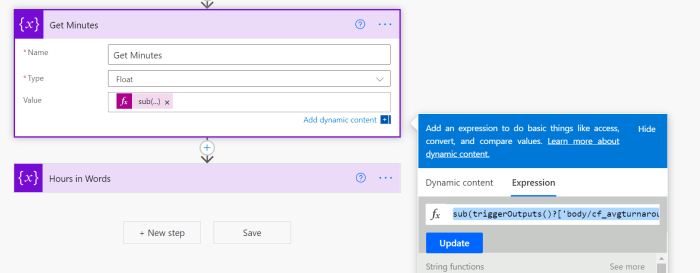
  5. Finally, to get Minutes, we use the third variable that uses a Sub function


    The Sub function looks like below –


    Formula is: sub(triggerOutputs()?['body/cf_avgturnaroundtime'], variables('Number to Subtract From'))
    Explanation: Now, we subtract the result of the Number To Subtract step from the value of the Duration field i.e. Avg Turnaround Time field itself. These will be the minutes.
    Now, to get the minutes we subtract the result of the Number to Subtract from the actual minutes value of the duration field i.e. 3375 – 3360 = 15. These are your minutes!


  6. Final step is to simply arrange it in a String (you can also form the string elsewhere directly and skip the below)

  7. And to make sense of this conversion, I’ll update the field on the record to show what the converted Hours and Minutes is.

  8. Here’s the final result once the Flow runs successfully.

Hope this helps! You might always want to check more Power Automate / Dynamics 365 posts –

  1. Office 365 Outlook connector in Cloud Flows showing Invalid Connection error | Power Automate
  2. FormatDateTime function in a Flow | Power Automate
  3. Formatting Approvals’ Details in Cloud Flows | Power Automate
  4. Trigger Conditions not working in a Cloud Flow? Here’s Why | Power Automate Quick Tip
  5. Read OptionSet Labels from CDS/Dataverse Triggers or Action Steps in a Flow | Power Automate
  6. InvalidWorkflowTriggerName or InvalidWorkflowRunActionName error in saving Cloud Flows | Power Automate Quick Tip
  7. Store ‘Today’s Date’ in a field to use in workflow conditions in D365 CE
  8. Create a Team, add Members in Microsoft Teams upon Project and Team Members creation in PSA / Project Operations | Power Automate
  9. Setting Lookup in a Flow CDS Connector: Classic vs. Current Environment connector | Power Automate Quick Tip
  10. Using outputs() function and JSON Parse to read data from missing dynamic value in a Flow | Power Automate
  11. Run As context in CDS (Current Environment) Flow Trigger | Power Automate
  12. Adaptive Cards for Teams to collect data from users using Power Automate | SharePoint Lists

Thank you!

Find Created On date of solution components in Solution Layers | Dynamics 365 [Quick Tip]

If you’ve been using classic CRM since 2011 days until Solutions History came out (around 2018 timeline), we always wondered when was a certain field, view, form (component in general) was created.

It’s possible to see using Solution Layers

Example: When was a field created

Let’s say you want to find out when a field was created.

  1. Select the field, check for Solution Layer as shown below

  2. Now, go into the Active layer

  3. In Active layer, scroll down to the details

  4. You’ll be able to see the Created On field

  5. If there was a component/field that is too old and was created before this feature was introduced, it’ll show a default 1900 DateTime value

Looking elsewhere

I tried to look for this info in XrmToolBox’s Metadata Browser but couldn’t find it –

Please let me know if any better suggestions as well! 🙂

Here are some more Dynamics 365 CE / CRM related posts you might want to check –

  1. Dynamics 365 Solutions History – Keep track of your deployments
  2. Using ‘Clone a Patch’ & ‘Clone Solution’ in Dynamics 365 Solutions
  3. Add multiple Opportunity Products at once in Dynamics 365 Sales | Enhanced Experience [Preview]
  4. Import lookup referencing records together in Dynamics 365 CRM | [Linking related entity data during Excel Import]
  5. Mailbox Alerts Hide/Show behavior in Dynamics 365 CRM
  6. Excel Importing Notes (Annotation) entity in Dynamics 365 CRM
  7. Dynamics 365 PSA v2 to v3 Upgrade failed? Here’s what to do.
  8. Dynamics 365 Solutions’ New Experience in Power Apps, Solution Checker and more
  9. Check Managed Solution failures in Solution History in Dynamics 365 CRM
  10. Store ‘Today’s Date’ in a field to use in workflow conditions in D365 CE

Hope this was useful

Enable/Disable the need to Approve Email for Mailboxes in Dynamics 365 CRM CE

This is one of the most useful common scenarios where you have to approach a Global Administrator every time to Approve Emails. Even when you want to create a few Queues or test Mailboxes on a non-production environment.

I would recommend this to be used only on Sandbox instance and let Production instance have this layer of approval of Global Administrators, but then it depends what you want to have. 🙂


Approve Email

Every time, you want to enable a mailbox for Server Side Synchronization, you are asked to Approve Email.
(If you want to enable Server Side Sync for enabling D365 App For Outlook, check this post Summarizing D365 App For Outlook Setup in 3 steps with Exchange Online mailbox)

emailWontProcess

And even if you try to Test & Enable the mailbox, you’ll see the error as This mailbox is disabled for email processing.
tryTest

And you get the error as IncomingEmailS2SApprovalNeeded. Let’s look at how even System Administrators who aren’t Global Admins can enable Mailboxes.


Disable Approve Email for Mailboxes & Queues

So, if you want to not have each mailbox need an Approval from Global Administrator, go to Settings in site map > Administration > System Settings > Email tab
settingsArea
In the above screenshot, you select which of the mailboxes or queues or both, you want to allow to process emails without approval. Now, I want to only disable the need for approval for Queues and keep the users as is.
disableForQueue

But doing so myself, gives me the following error
cantDisable

That’s because, to disable this, you’ll need a Global Administrator once. Once they disable this, if you have the appropriate rights to Test & Enable Mailbox, you can directly Test & Enable a mailbox even though the error message is still displayed on the Mailbox after disabling this feature.
success
The mailbox for the Queue is now active.

In case you are also looking to create a Support Queue for your organization, you can check this post Create a support Queue in D365 CE.

Hope this helps!!

Curious Case of the locked fields in D365 – Quote ID example

So, I struggled some time in trying to make something just work as it was supposed to work. And for no conscious reason, I was able to figure out why.

As to why my Quote wouldn’t save and auto generate the usual Quote ID? It kept asking me to enter it!

Problem

OOB, Quote ID is locked and is auto-generated when you save the record.
newForm

Instead, I got this
cantSave

And asks me to enter Quote in the field again.
enterQuote

Ideally, if you have a required field locked, you can save it and the form won’t force you.
fieldIsLocked

But, nothing would work.

After much hassle, I finally noticed the culprit lying in plain sight. Let’s look at why this was happening.

Culprit

This happened because the same field was on the Business Process Flow and was unlocked
quoteOnProcess

That was the issue. As a part of the requirement, I had put it there, but either didn’t lock it or shouldn’t be there.

I just removed it since it wasn’t a big deal and things were fine now.
savedQuote

Hope this helps you! 🙂